Product note
Building your service menu: variants, add-ons and pricing by seniority
Real menus are messier than one service, one price. A walk through everything the service editor can describe, in the order you will meet it.
SalonRadar · Editorial team
5 min read
In short
- If two services differ only by size, make them variants.
- Add-ons are chosen by clients online; upgrades are applied by your team.
- Turn online booking off for anything that needs a consultation first.
The service menu is the first thing you set up and the thing you will edit most often for as long as you run the business. It is also where most booking software quietly forces you into its own idea of a salon: one service, one price, one duration, take it or leave it.
Real menus are messier. A cut costs more with the senior stylist. A full groom depends on the size of the dog. Balayage cannot sensibly be booked online without a conversation first. This guide goes through how Services in SalonRadar handles each of those, in the order you will meet them.
Starting from something
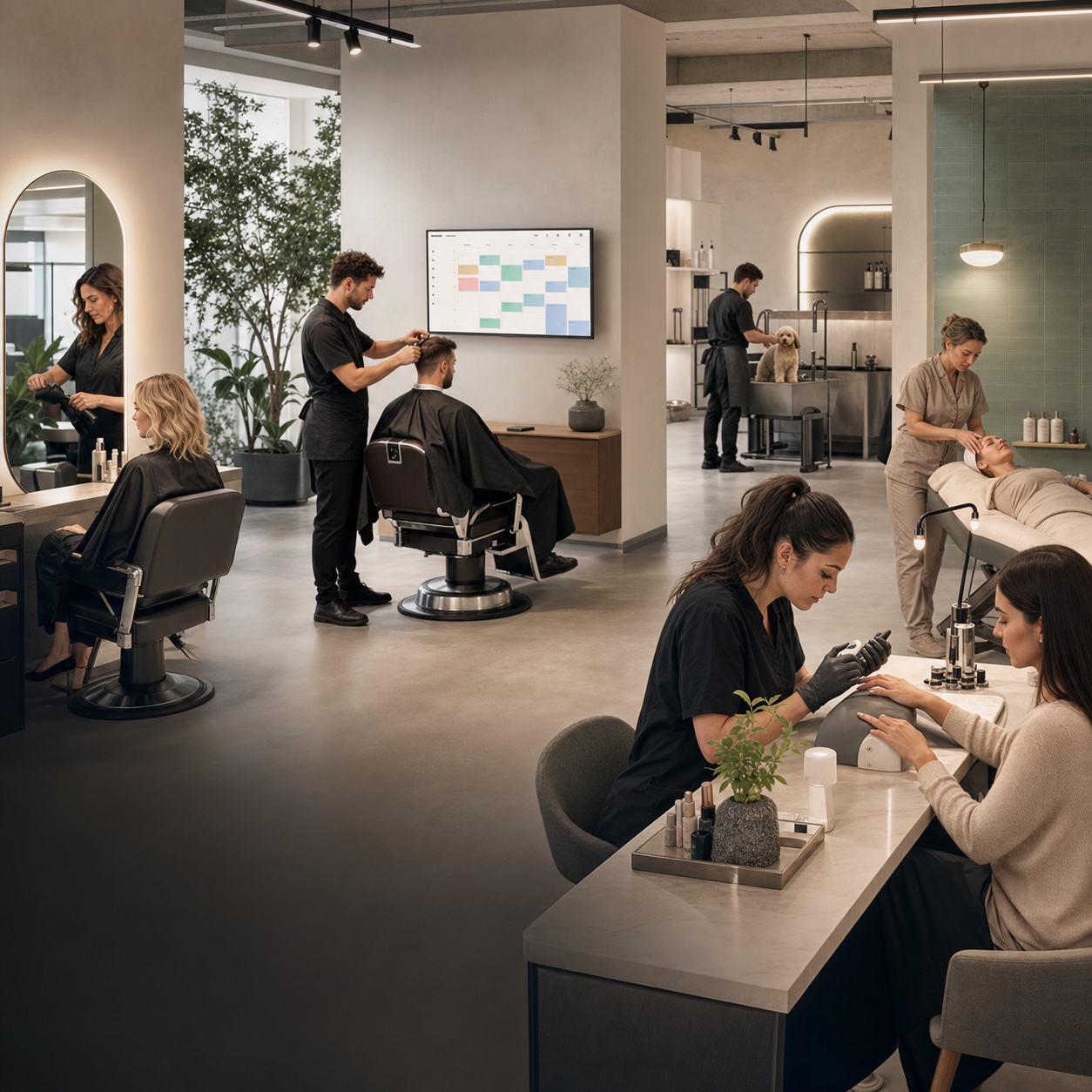
An empty menu offers you a starter pack: hair salon, barbershop, nails, beauty, spa and wellness, or pet grooming. Each loads a sensible set of categories and services that you then rename, reprice and prune. Deleting what you do not offer is quicker than typing what you do.
If you already have a public profile on Treatwell or Watalook, there is a second shortcut. Paste the profile's address into the import tool, confirm that the salon is yours, and you get a preview of services, working hours, staff and photos to tick and bring across. You approve every line before anything is created.
The basics: category, price, duration
Every service lives in a category, and categories are what your clients browse, so name them the way a client would ("Colour", not "Chemical services"). Give each one an emoji if you like. Drag categories and services into the order you want them seen.
A simple service has one price and one duration. That is enough for most of a barbershop's menu, and you can stop there.
Variants: one service, several sizes
Switch pricing to variants when the same service comes in different sizes. Short, medium and long hair. Small, medium and large dog. Half leg and full leg. Each variant has its own name, price and duration, and the client chooses one while booking.
The alternative is three separate services with nearly identical names, which makes the menu three times longer and the reports three times harder to read. Use variants whenever the answer to "what is the difference?" is a size.
Price by seniority
If your salon charges by level (junior, stylist, senior, director), define the levels once and assign each team member to one. Then switch on price by seniority for a service and fill in what changes per level. A senior might charge more for the same cut; a junior might need fifteen minutes longer. Leave a field blank and it inherits the base value, so you only type the exceptions.
The client sees the right price for the person they pick. You maintain one service, not four.
Add-ons and upgrades
These two look alike and behave differently.
- Add-ons stack on top. A deep-conditioning treatment, a scalp massage, nail art on two fingers. Clients can pick any number of them when they book online, and each adds its price and time.
- Upgrades replace a default, such as a premium product line in place of the standard one. They are applied by your team and are not shown in the online booking flow, because they usually need a conversation.
Add-ons are the most underrated part of a menu. A client who would never book a separate fifteen-euro treatment will often tick a box for one.
Live, draft, and "call us"
A service is a draft until you publish it. Drafts are visible to your team and hidden from clients, which is handy while you are still arguing about the price.
Separately, each live service is either bookable online or not. Turn online booking off and clients can still see the service and its price on your page, but they have to get in touch to book. That is the right setting for anything that needs a consultation first: colour corrections, extensions, a first laser session.
When you stop offering something, archive it. Services with appointment history can only be archived, not deleted, so old bookings and reports keep making sense. You can restore one at any time.
The scheduling details people forget
Buffers before and after a service block time that is not sold: setting up the room, letting a machine cool, sweeping up. Put the buffer on the service that causes it and the whole calendar respects it, including online booking.
The internal note is for your team only. "Patch test required 48 hours before." "Check for pacemaker." It travels with the service so that a new receptionist does not have to know everything on day one.
Three sections you may never open
- Devices. If a service needs a machine or a chair you only have one or two of, list the units here and the calendar will stop them being double-booked.
- Stock consumption. A recipe of the products one performance uses, deducted when the booking is completed.
- Pet eligibility. For groomers: restrict a service by size, coat type or breed, so a giant breed cannot land in a slot priced and timed for a terrier.
Each of them stays out of the way until you need it.
More than one language
Every text field has language tabs. Clients see your primary language by default and the translation when there is one. In a city where a third of your clients would rather read Russian or English than Lithuanian, a translated menu is one of the cheaper kindnesses you can offer.
What a good menu looks like
Short. If two services differ only by size, make them variants. If something is always sold with something else, make it an add-on. If nobody has booked it in a year, archive it. A client should be able to find what they want in the time it takes to unlock their phone, and you should be able to read your own service report without squinting.